The terminal UI
dyco tui
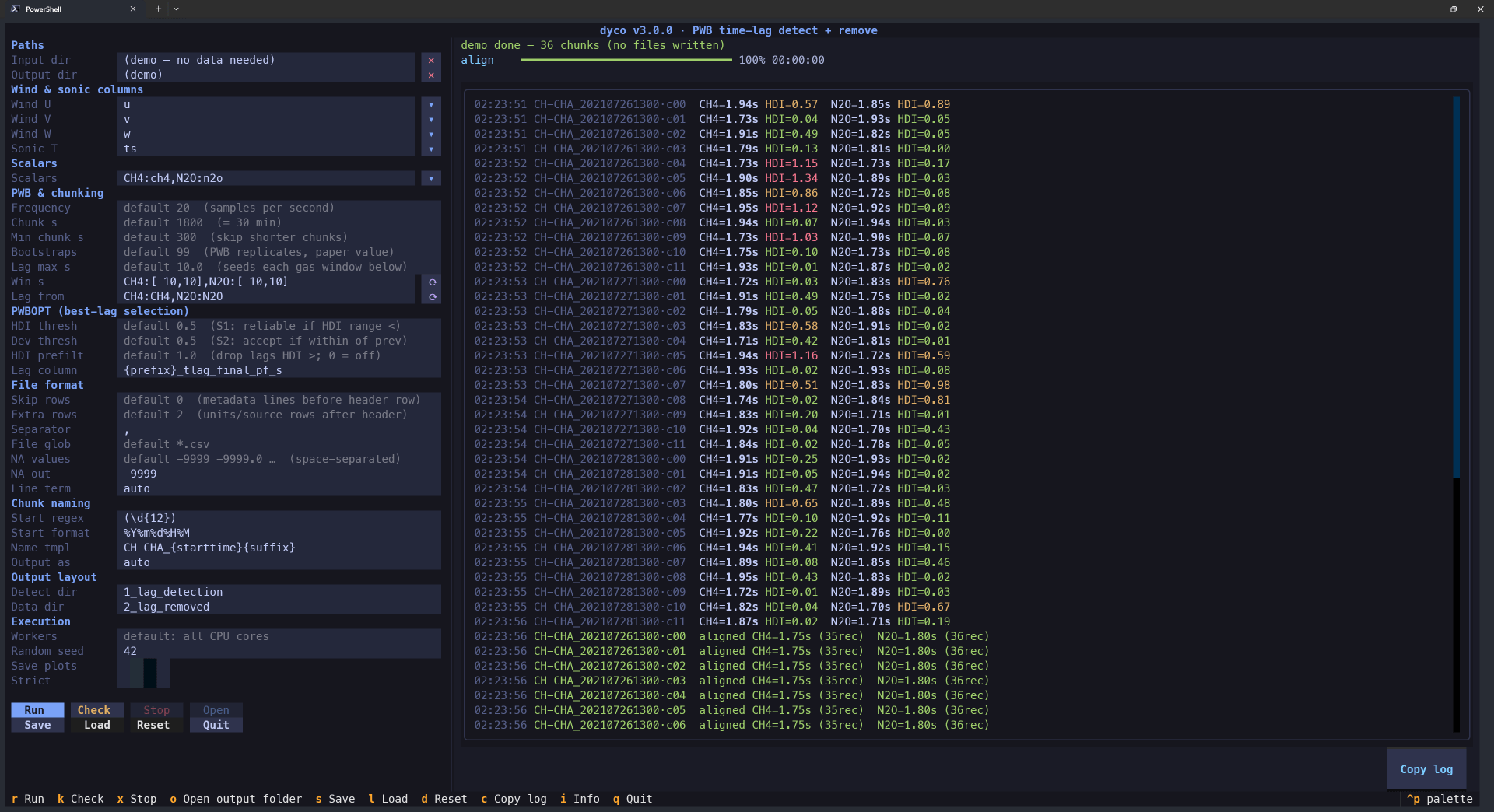
Settings on the left, the run on the right. This is dyco tui --demo, which needs no data.
This is the recommended way to run dyco. A detect-and-remove run takes on the order of thirty settings: column names, file format, chunk length, search windows per gas, PWBOPT thresholds. Getting one of them wrong is easy on a command line and obvious in a form. The TUI validates as you type, scans your first file so you can pick column names from a list instead of typing bracketed names by hand, and runs a preflight Check that reads a real file and reports what it found before anything is processed. It saves and reloads settings, and every run writes its configuration back out, so a run started in the TUI can be repeated exactly.
dyco tui --demo explores the interface with no data at all.
Its relationship to the command line
The TUI drives one command, dyco detect-remove, which is the whole job in one pass. That covers the
normal case, including taking a weak gas’s lag from a strong one.
The CLI and the TUI take the same format settings. The TUI is a front end over the same parser, building its configuration from the identical arguments, so anything you can describe in the TUI you can pass on the command line. The difference is that the TUI validates as you type and can scan a file to show you its columns first.
Every TUI run writes a detect_remove_tui_settings.yaml next to its results, and the TUI can reload
it. Build the configuration interactively, then automate the command.
Settings file location
The TUI’s saved settings live at ~/.dyco/detect_remove_tui.yaml.
Note
An existing ~/.diive/ configuration from before the v3 migration will not be found.
Settings are loaded at start and saved on Run, or with the Save button, so column names and paths are entered once and then stay.
The two panes
Left, the form. Paths, the four wind and sonic columns, the gases, the PWB and chunking parameters, the raw file format (skip-rows, extra header rows, separator, file glob) and the naming rule for output chunks. Every field has a tooltip on hover, and focusing a field echoes the same help into the status line, so the keyboard route shows as much as the mouse one.
You can drag a folder onto the window to fill a path field. The drop prefers an empty field, so once Input dir is set the next drop lands in Output dir without clicking anything. Some terminals type the dropped path into whatever field has focus instead of pasting it; there, click the target field first. The ✕ button clears a field.
Right, the run. An overall progress bar, one spinner row per busy worker naming the file and
chunk it is on right now, and a log underneath where each finished chunk appends its result. The
spinner row appears the moment a worker picks up a chunk, so the display shows what is in flight
rather than only what has landed. Each log line is stamped with the wall-clock time, and Copy log
(or c) puts the whole buffer on the clipboard.
The Check preflight
Check (or k) reads only the header of the first matching file, so it answers in well under a
second rather than after a long run. It reports, in order:
How many files the glob matched.
How many columns were parsed out of the header, with the
skiprowsandextra-rowsit used, then the column names themselves.One line per configured column, ticked if it is in the header and crossed if not. This is the check that earns its keep: a wrong separator or
skiprowsshows up here as every column missing, rather than as a failed run an hour later.The chunk plan: roughly how many data rows the file holds, how many chunks that becomes, and the total across all matched files.
The name the first output file would get, and a note if the compression is about to change between input and output.
It finishes with check passed, ready to Run, or points you at the log.
Stopping a run
Stop cancels the phase in flight, not the whole run. Pressing it during detection lets the chunks already detected be aligned and written, so a long run leaves usable data behind rather than nothing. The button re-enables when alignment starts; press it again to skip that too and keep whatever has been written by then.
Warning
A stopped run’s output is provisional. PWBOPT only sees the periods that were detected before you stopped, so a period a complete run would have filled from a later detection may instead carry an earlier lag, or fall back to the median.